Core
The Core tab holds the settings that decide how traffic reaches b4 and what b4 does with it, on five sub-tabs:
- Packet Engine: how packets reach b4, which address families it handles, the packet queue and IP block detection;
- Devices: device filtering and the devices b4 knows;
- Firewall: how b4 installs and monitors its firewall rules, MSS clamping, NAT Masquerade and DSCP;
- DNS: DNS over TCP and the DNS timeouts;
- SOCKS5: the built-in SOCKS5 proxy.
Which fields apply on save and which after a service restart is listed under Saving and restarting.
Restart Service, System Info, logging, the web server and backups are on the System tab.
Packet Engine
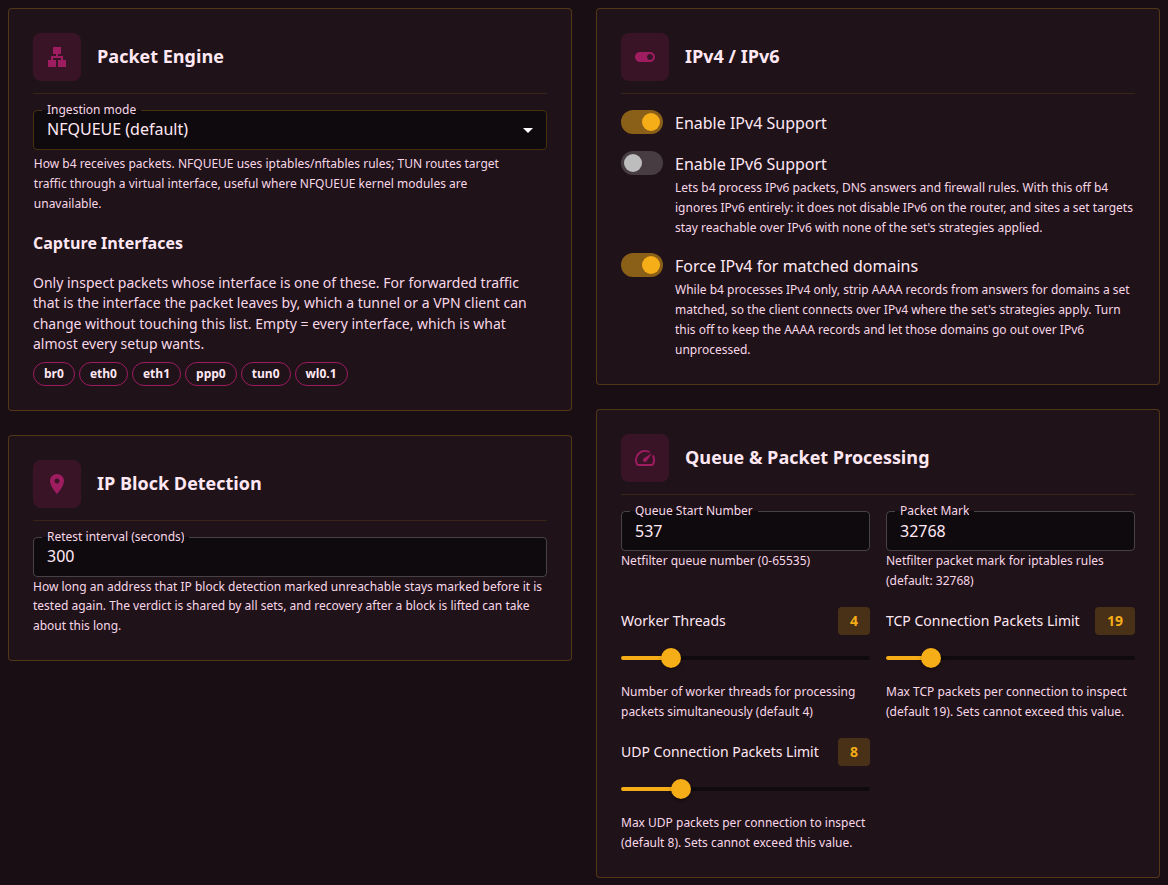
The sub-tab decides how packets reach b4, which address families it handles and how many packets of each connection it reads. The left column holds the Packet Engine and IP Block Detection cards, the right column IPv4 / IPv6 and Queue & Packet Processing.
Ingestion mode
Ingestion mode (queue.mode) on the Packet Engine card selects how packets reach b4. The engine starts once, when the service starts, and a change applies after a restart.
| Mode | How packets reach b4 | Kernel and tools it needs |
|---|---|---|
| NFQUEUE (default) | iptables or nftables rules hand packets to netfilter queues that b4 reads | nfnetlink_queue; with iptables also the xt_NFQUEUE target and the xt_connbytes match, with nftables nft_queue |
| TUN interface | Target traffic is routed through a virtual interface that b4 reads | /dev/net/tun and the iptables binary or the iptables-nft shim; no queue modules |
With iptables, an address family whose iptables lacks the NFQUEUE target or the connbytes match gets no rules, and the engine does not start when neither family can take them.
With TUN interface selected, the card shows the TUN settings group in place of Capture Interfaces. TUN captures the first packets of each connection to the capture ports, and the Capture row of the System Diagnostics dialog, opened by the System Info button, reads ports. On a kernel without the xt_connbytes match, b4 routes the whole default route through the TUN device instead, and the row reads default, except in the case described below.
The TUN engine sends each packet it reads on through a raw socket. For a packet the device forwards for another host, such as a LAN client or a Docker container on a bridge network, that copy has to skip connection tracking, which b4 arranges with a NOTRACK rule in the iptables raw table. Without it the kernel's NAT gives the copy a new source port, and the reply never reaches the client. A kernel without the raw table (iptable_raw) or without the CT target (xt_CT), such as the Synology DSM kernel, cannot hold that rule, and b4 treats a failed SNAT into the TUN device the same way.
There b4 captures only the connections the device makes itself, those of its SOCKS5 and MTProto proxies included. Forwarded traffic stays out of the TUN device: it gets no bypass strategies and b4 does not see its DNS queries, while routing and blocking sets still apply to it. The capture ports are TCP and UDP 443, the ports in the sets' port filters and TCP 80 when a set uses Empty line before HTTP method. Where xt_connbytes is missing as well, every packet of those connections goes through the TUN device, and b4 counts them itself, processing only the first tcp_conn_bytes_limit / udp_conn_bytes_limit packets (19 and 8 by default). The log says so at startup, and the System Diagnostics dialog shows This device only in the Captured Traffic row under Engine. With Skip IPTables/NFTables Setup on, b4 installs neither rule and keeps capturing forwarded traffic.
TUN settings
| Field | Description | Default |
|---|---|---|
| Uplink interface | queue.tun.out_interface. Where b4 sends the packets it has processed. Auto (follow default route) follows the system default route and moves with it when the WAN or VPN changes; a named interface pins the uplink. The TUN device itself is not offered | Auto (follow default route) |
| Uplink gateway | queue.tun.out_gateway. The gateway on a pinned uplink, taken from the current default route while the field is empty. Greyed out while the uplink is on Auto (follow default route), which resolves the gateway from the default route | Empty |
| TUN address | queue.tun.address. Address and prefix of the TUN device. It must not overlap a LAN or VPN subnet | 10.255.0.1/30 |
| TUN device name | queue.tun.device_name. Name of the virtual interface b4 creates. The engine does not start when the name equals the uplink interface or belongs to an existing interface that is not a TUN device | b4tun0 |
Capture Interfaces
Capture Interfaces (queue.interfaces), shown in NFQUEUE mode, decides which packets the engine inspects at all. Each interface appears as a tag, and a selected tag is filled. An empty selection, the default, means every interface and is the usual choice.
The selection is a filter, not a list of interfaces b4 attaches to, and it does not select a direction by name. b4's capture rules sit in the postrouting and output hooks, after the kernel has decided where the packet goes, and for forwarded traffic the interface compared here is the one the packet leaves by. While Device Filtering is on with devices from the ARP table selected, the forward hook takes the place of postrouting, and the leaving interface is known there as well. Only the reply direction and DNS, captured in prerouting, are matched on the arriving interface.
The interface a packet leaves by comes from the routing table, and another service can change it without touching this list. A VPN client or a transparent proxy that moves the default route puts every packet on a different interface, and a selection made before that stops matching.
While the selection matches nothing, b4 inspects nothing: packets are still queued to it, at the same cost, and every one is accepted unchanged. No set applies and no strategy runs. When an interface outside the selection carries outgoing traffic, the card names it, and while some traffic still leaves by the selected interfaces, it also shows the share of traffic b4 is not inspecting. The per-interface counts behind that notice are in the diagnostics report as packets_leaving and packets_arriving.
Which interface is which compares Capture Interfaces with the Source Interfaces and the Output Interface of a set.
When the engine does not start
b4 starts the packet engine before the web interface. When the engine fails, b4 removes the rules it had installed and keeps running without it:
- traffic passes through the router without b4 touching it;
- the web interface, the SOCKS5 proxy and the MTProto proxy stay up, and so do the rules of their Expose to internet switches;
- the other firewall rules, routing sets and the watchdog stay off.
The reason is written to the log at the ERROR level. The dashboard shows it with buttons that switch to the other engine, restart b4 or open this sub-tab, and the Packet Engine card shows it under Ingestion mode. For example, on a kernel without the queue modules iptables rejects the NFQUEUE target, and a TUN engine with an automatic uplink finds no default route while the WAN or VPN is still down.
b4 retries on its own by restarting itself in place, up to three times:
- 15 seconds after the first failure;
- 30 seconds after the second;
- 60 seconds after the third.
A cause that clears up by itself, such as a WAN link that comes up after b4, is picked up by one of these retries. After the third failed retry b4 stays in this state until it is restarted. A restart from the web interface or by the service manager starts the count again.
With the web server off (port 0), b4 exits with the error instead.
IP Block Detection
The card holds the one global setting of IP block detection. Each set turns the detection on for itself, under IP Block Detection on its TCP, General tab.
| Field | Description | Default |
|---|---|---|
| Retest interval (seconds) | system.ip_health.retest_interval_sec, 30-3600. How long an address that IP block detection marked unreachable stays marked before it is tested again. The verdict is shared by every set, and recovery after a block is lifted can take about this long. The same interval paces the reachability checks of pinned DNS addresses | 300 |
DNS, Pinned addresses describes how pinned addresses are checked at this interval.
IPv4 / IPv6
| Field | Description | Default |
|---|---|---|
| Enable IPv4 Support | queue.ipv4. Process IPv4 traffic | On |
| Enable IPv6 Support | queue.ipv6. Process IPv6 packets, DNS answers and firewall rules | Off |
| Force IPv4 for matched domains | system.dns.keep_ipv6_answers, inverted: the switch on means false. While IPv6 support is off, strips the IPv6 addresses out of DNS answers for domains a set matched and leaves every other name alone. Greyed out while IPv6 support is on | On |
These switches decide which address families b4 handles. They do not turn IPv6 on or off on the router, and they do not stop the network from using it.
With it off, b4 creates no IPv6 firewall rules and reads no IPv6 packets. A site that a set targets and that also answers over IPv6 is reached over IPv6 by the client and bypasses the set entirely: no bypass strategies, no routing, no blocking. b4 writes a warning to the log, and the card shows one until it is dismissed, while the host has a working global IPv6 address and this setting is off.
Force IPv4 for matched domains narrows the gap for clients that resolve through the router: their answers for matched domains carry IPv4 addresses only, and they stay on the IPv4 path b4 protects. See DNS, The IPv4 fallback.
Saving a change to Enable IPv4 Support or Enable IPv6 Support rebuilds the firewall rules of every routing set, and with NFQUEUE the capture rules as well. The packet queue binds its address families when it starts, and the change takes full effect after a service restart.
Queue & Packet Processing
| Field | Description | Default |
|---|---|---|
| Queue Start Number | queue.start_num, 0-65535. The first NFQUEUE number. With NFQUEUE, b4 reads one queue per worker thread, numbered upward from this value, 537 to 540 with the defaults. Another value is needed only when another program uses the same queue numbers | 537 |
| Packet Mark | queue.mark, in decimal; 0 stands for the default. The queue mark: b4 puts it on the fakes, split segments and packets it sends back out, and on the DNS queries it sends for clients and for its sets, and lets its own packets that carry it pass its packet processing unchanged. It never leaves the host; DSCP writes a value into the packet itself. A value that collides with the marks b4 uses for other purposes is refused on save. See Packet marks | 32768 |
| Worker Threads | queue.threads, 1-16. How many workers process packets in parallel; with NFQUEUE each reads its own queue | 4 |
| TCP Connection Packets Limit | queue.tcp_conn_bytes_limit, at most 100. How many packets at the start of each TCP connection are queued to b4. The slider starts at 1, but a value below 19 is raised to 19 when the configuration is saved | 19 |
| UDP Connection Packets Limit | queue.udp_conn_bytes_limit, at most 30. The same for UDP; a value below 8 is raised to 8 on save | 8 |
These limits are a global ceiling. Each set can define its own limit, but not above the global one, and a higher value in a set is lowered to it on save. A higher limit queues more packets of each connection to b4, and each of them costs processing time.
Devices
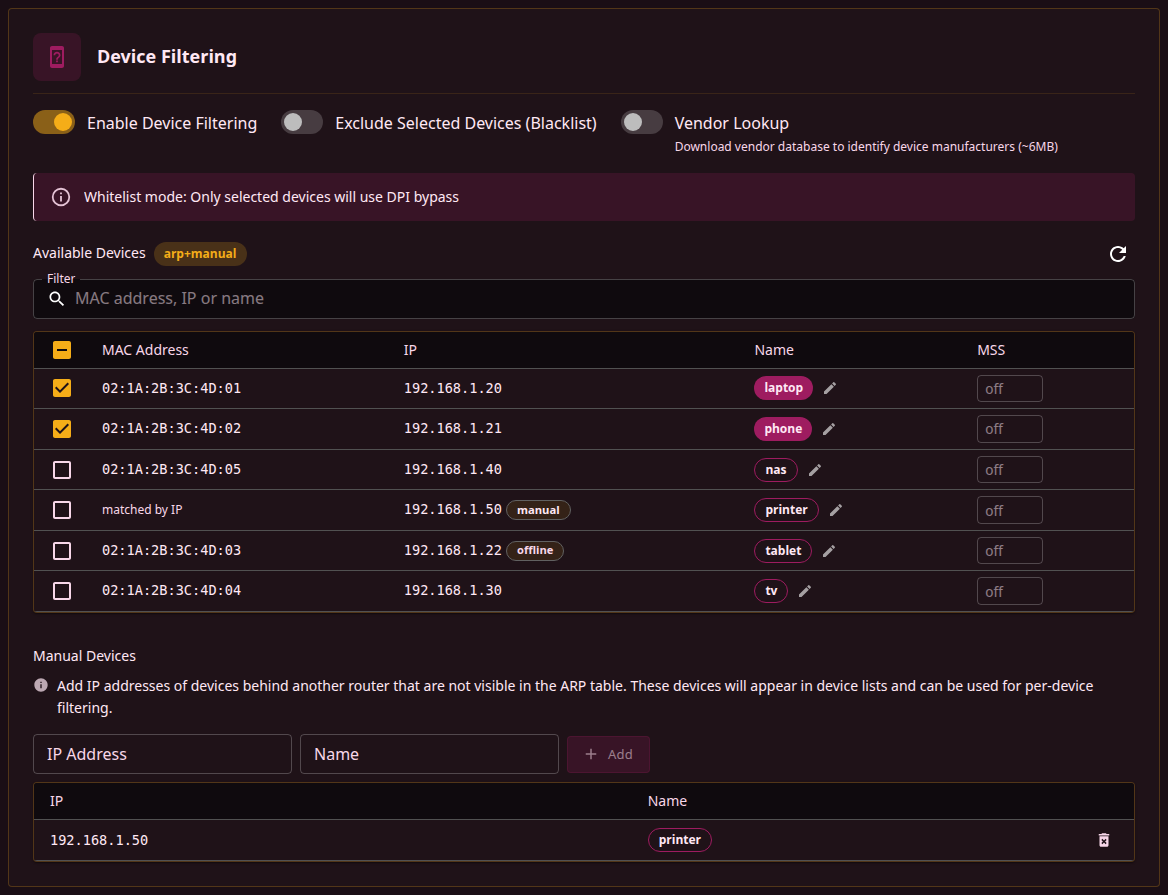
The sub-tab holds one card, Device Filtering. It limits DPI bypass to selected devices on the network, or excludes selected devices from it, and lists the devices b4 knows.
| Field | Description | Default |
|---|---|---|
| Enable Device Filtering | queue.devices.enabled. Turns the selection on | Off |
| Exclude Selected Devices (Blacklist) | queue.devices.wisb. Turns the allow list into a deny list. Available while filtering is on | Off |
| Vendor Lookup | queue.devices.vendor_lookup. Downloads the IEEE OUI list (about 6 MB) to name a device's manufacturer from its MAC address. b4 keeps the list as oui.txt next to the configuration file, downloads a fresh copy when the one it loads is more than 30 days old and deletes it when the switch is turned off. A locally administered MAC address, such as a randomized one, shows as Private whatever this switch says | Off |
- Allow list (the switch off, the default): DPI bypass works only for the selected devices.
- Deny list (the switch on): the selected devices are excluded from DPI bypass.
Devices discovered from the ARP table are matched by their MAC address, and for DPI bypass the selection works on MAC addresses only. A selection made only of devices added by hand, or of no device at all, leaves DPI bypass applying to every device.
Routing sets of every mode and Telegram over WebSocket take the same selection for traffic from the network, and there a device added by hand is matched by its IP address.
The filter selects devices on the network, and the router is not one of them. Connections the router opens itself, including the ones the SOCKS5 proxy opens for its clients, get DPI bypass in both modes. Block sets act on them, and for TCP so do proxy sets and Telegram over WebSocket sets, unless the set is limited to source interfaces or an included source-device list. Sets in interface mode follow their Router's own traffic setting.
Available Devices
While filtering is on, the card lists the devices b4 knows, with their source in a chip next to the title:
arp: the ARP table (/proc/net/arp);arp+manual: the ARP table and devices added by hand;manual: devices added by hand only.
b4 reads the ARP table every 30 seconds, and the refresh button (Refresh devices) loads the current list. With no ARP table and no device added by hand, the card shows ARP table not available. Device discovery unavailable. in place of the table.
| Column | Description |
|---|---|
| Checkbox | Selects the device. The checkbox in the header selects every listed device |
| MAC Address | The MAC address, or matched by IP for a device added by hand |
| IP | The current IP address, with a manual chip for a device added by hand and offline for a named device that is not in the ARP table now |
| Name | The name set with the edit icon, otherwise the vendor, otherwise Unknown |
| MSS | Per-device MSS clamp, 10-1460; empty means off |
The Filter field above the table narrows the list by MAC address, IP or name.
A value in the MSS column clamps the MSS of that device's TCP connections to port 443, a TV running YouTube for example. It applies whether or not device filtering is on, while the column is shown only when it is on. With iptables, a device matched by its MAC address can be matched only on the packets it sends; while the global clamp is off, b4 also sets the smallest such value on every SYN-ACK it forwards from port 443, whichever device the SYN-ACK goes to. A device added by hand is matched by its IP address in both directions.
Manual Devices
The group, shown while filtering is on, adds devices that the ARP table does not show, such as devices behind another router, from an IP Address, IPv4 or IPv6, and an optional Name. Added devices are listed under the fields, each with a delete icon.
Such a device has no MAC address on the network and is matched by the IP address entered for it: in the selection applied to routing sets, in a set limited to source devices and in a per-device MSS clamp. It needs a fixed or reserved address, and it cannot be matched at all when a router in between replaces the source address of its traffic before it reaches b4. In the configuration it carries a placeholder MAC address, 02:B4: followed by the last four bytes of its IP address, which no firewall rule uses.
Firewall
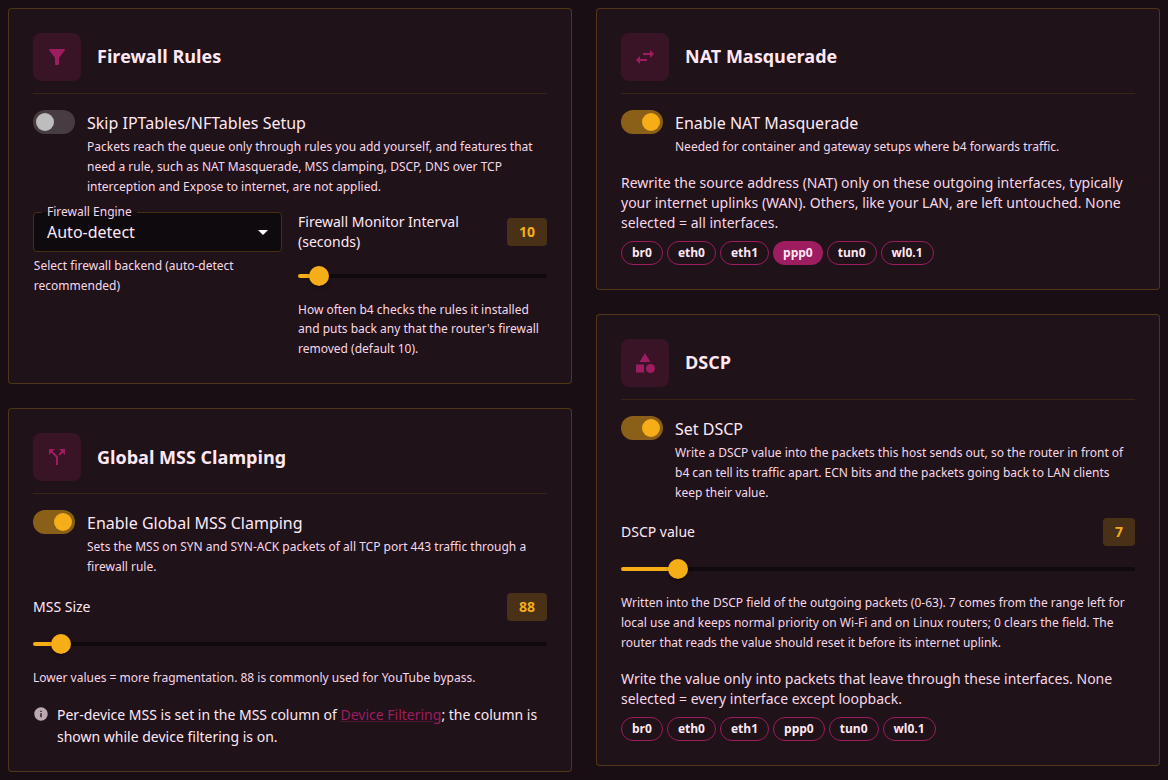
The sub-tab holds the rules b4 installs around the packet engine: Firewall Rules and Global MSS Clamping on the left, NAT Masquerade and DSCP on the right.
Firewall Rules
| Field | Description | Default |
|---|---|---|
| Skip IPTables/NFTables Setup | system.tables.skip_setup. With NFQUEUE, b4 installs no capture rules, and packets reach the queue only through rules added by hand; the TUN engine still installs its own capture rules. NAT Masquerade, MSS clamping, DSCP, DNS over TCP interception and Expose to internet are not applied. Saving the settings while it is on still installs the rules of routing sets, which stay until the next restart | Off |
| Firewall Engine | system.tables.engine. The backend for b4's rules, see the table below | Auto-detect |
| Firewall Monitor Interval (seconds) | system.tables.monitor_interval, 0-120. How often b4 checks the rules it installed and puts back any that the router's firewall removed. A changed interval applies after a restart. Greyed out while Skip IPTables/NFTables Setup is on | 10 |
| Firewall Engine | Description |
|---|---|
| Auto-detect | nftables when the nft binary can create a table. Otherwise iptables, or iptables-legacy when iptables is the nf_tables variant and iptables-legacy is installed |
| nftables | nftables |
| iptables | iptables |
| iptables-legacy | The iptables-legacy binaries |
With the NFQUEUE engine, 0 turns rule monitoring off completely, and the card shows a warning. Rules that an external program or script removes are not restored.
The Expose to internet switches of the web server, the SOCKS5 proxy and the listeners on the Telegram tab add accept rules to the host's own input chains, separately from the rules of the packet engine. The monitor interval also sets how often b4 checks them and puts back the ones a firewall reload removed, whatever the packet engine; at 0 only SIGUSR1 starts that check. Skip IPTables/NFTables Setup stops b4 from adding them. See Access from the internet.
In TUN mode the card holds only Firewall Monitor Interval (seconds), and Skip IPTables/NFTables Setup appears there only when the sub-tab opens with it on. At that interval the TUN engine checks its capture chain B4_TUN and the jumps into it, and the firewall monitor checks the masquerade, MSS clamp, DSCP and routing-set rules. Each puts back what the router's own firewall removed, for example when the router restarts its firewall after a port-forwarding change. In this mode the interval is at least 10 seconds, and 0 turns neither check off. With Skip IPTables/NFTables Setup on, only the capture rules are checked. SIGUSR1 starts the checks without waiting for the interval.
When TUN captures by port (the Capture row reads ports), the System Diagnostics dialog compares the number of rules in the capture chain with the number b4 installed, in the Capture Rules row. After the first restore it also shows how many times the capture rules were restored, in the Capture Rules Restored row, and, in either engine mode, how many times the firewall monitor restored its rules, in the Rules Restored by the Monitor row, each with the time of the last restore. A count that keeps growing points to another service on the router rewriting the firewall.
Global MSS Clamping
The clamp sets the TCP Maximum Segment Size option on the SYN and SYN-ACK packets of every TCP connection to port 443, the router's own included. Both ends then send segments no larger than the value, and the client's ClientHello leaves in several small segments.
| Field | Description | Default |
|---|---|---|
| Enable Global MSS Clamping | queue.mss_clamp.enabled | Off |
| MSS Size | queue.mss_clamp.size, 10-1460 bytes. Shown while the switch is on. A lower value means smaller segments | 88 |
From broadest to narrowest:
- Global, here: every TCP connection to port 443.
- Per device, in the MSS column of Available Devices: the connections of that device.
- Per set, on a set's TCP, General tab: the addresses or devices that set targets.
For the connections it covers, a set's value takes precedence over a device's, and a device's over the global one.
NAT Masquerade
Masquerading rewrites the source address of forwarded packets to the address of the interface they leave by. Container and gateway setups where b4 forwards traffic need it.
| Field | Description | Default |
|---|---|---|
| Enable NAT Masquerade | system.tables.masquerade.enabled. Greyed out while Skip IPTables/NFTables Setup is on | Off |
| Interface tags | system.tables.masquerade.interfaces. Shown while masquerading is on. Limits the rewrite to these outgoing interfaces, typically the internet uplinks, and leaves the others, such as the LAN, as they are. None selected means every interface | None |
With iptables the rules sit in chain B4_MASQ of the nat table, jumped from the end of POSTROUTING. With nftables they sit in table ip b4_nat. Masquerading covers IPv4, and IPv6 only with iptables and the NFQUEUE engine while Enable IPv6 Support is on. Packets b4 sends toward LAN clients keep their source address.
In TUN mode masquerading leaves the TUN device out: the TUN engine rewrites the source address of captured packets to the uplink address itself, and keeps that rule ahead of any masquerade rule that names no outgoing interface. When TUN captures only the device's own traffic (see TUN without the raw table or the CT target), that rule is a NAT exemption, -o <device> -j ACCEPT, which leaves the source address as it is.
DSCP
| Field | Description | Default |
|---|---|---|
| Set DSCP | system.tables.dscp.enabled. Writes a DSCP value into the packets this host sends out. Greyed out while Skip IPTables/NFTables Setup is on | Off |
| DSCP value | system.tables.dscp.value, 0-63. Shown while Set DSCP is on. Turning the switch on with the value at 0 fills in 7 | 0 |
| Interface tags | system.tables.dscp.interfaces. Shown while Set DSCP is on. The output interfaces whose packets get the value; none selected means every interface except loopback. A saved interface that no longer exists shows as a red tag marked unavailable | None |
DSCP is the upper six bits of the IPv4 ToS byte and of the IPv6 Traffic Class byte. With Set DSCP on, b4 writes the configured value into that field of every packet the host sends out, and a router in front of b4 can tell b4's traffic apart by a field in the packet itself. The marks b4 uses internally, Packet Mark among them, cannot do this: they are kernel metadata of the packet on this host and never appear on the wire.
The value is written into:
- traffic forwarded through the host;
- b4's own connections;
- the fakes, fragments and segments b4 injects for the DPI bypass, which carry the same value as the real packets of the same connection.
It is not written into loopback traffic, into the packets b4 itself sends toward LAN clients, such as DNS answers and resets, or into replies within connections another host opened, such as the web interface's responses or the server replies b4 passes back to a LAN client after masquerade. The two ECN bits of the field are kept. Both IPv4 and IPv6 are covered, whatever Enable IPv4 Support and Enable IPv6 Support say. With interfaces selected, only packets leaving through them get the value.
With iptables the rule sits in its own chain B4_DSCP in the mangle table, jumped from the top of POSTROUTING and kept above b4's capture jump there: a packet b4 inspects leaves mangle POSTROUTING at that jump, and a rule below it never sees the packet. The DSCP target needs the xt_DSCP kernel module, packaged on OpenWrt as kmod-ipt-ipopt and iptables-mod-ipopt. With nftables the rule sits in its own table inet b4_dscp and needs no extra module. With iptables, when the kernel refuses the rule for one address family, b4 logs it once and leaves that family without the value; with nftables, a refused table leaves both families without it. The firewall monitor puts the rule back when another program removes it, in both engine modes.
The value is written only while b4 runs with its firewall rules. While b4 is stopped, restarting or running without its packet engine, the host still forwards packets, without the value. A router that uses the value to keep b4's traffic out of a route leading to b4 sends those packets back to b4 meanwhile; a match on the interface or the MAC address does not depend on b4 running.
Every device on the path sees the value until something rewrites it, and some of them act on it. Linux Wi-Fi drivers, and access points that follow the same mapping, choose the WMM queue from it:
7, from the range RFC 2474 leaves for local use, stays in the best-effort queue with traffic that carries no DSCP value;8and several other values below24go to the background queue;- values from
32up go to the video and voice queues.
0 clears whatever value the packets carried.
The router that reads the value is expected to reset the field on its internet uplink. Without that reset, the ISP sees the value on every connection b4 carries.
Flows that the kernel or the hardware offloads (an nftables flowtable, FLOWOFFLOAD, vendor hardware NAT) skip the rule once offloaded, and only their first packets carry the value. A router that decides on the first packet of a connection and keeps that decision for the whole connection is not affected; one that reads the value on every packet sees the rest of the connection without it.
RouterOS tells the packets of a b4 container, or of a b4 machine with a subnet of its own, apart by the interface they arrive on, and routing through b4 there needs no DSCP value. See Routing chosen destinations through the container.
DNS
The sub-tab holds one card, DNS, with what applies to DNS across every set: whether DNS over TCP is intercepted and the local port it is redirected to, under DNS over TCP, and the timeouts, under Timeouts (seconds). The resolver itself is picked per set.
The fields, their defaults and the reasons for intercepting DNS over TCP are described under DNS, Global DNS settings. Force IPv4 for matched domains is on the IPv4 / IPv6 card of Packet Engine.
SOCKS5
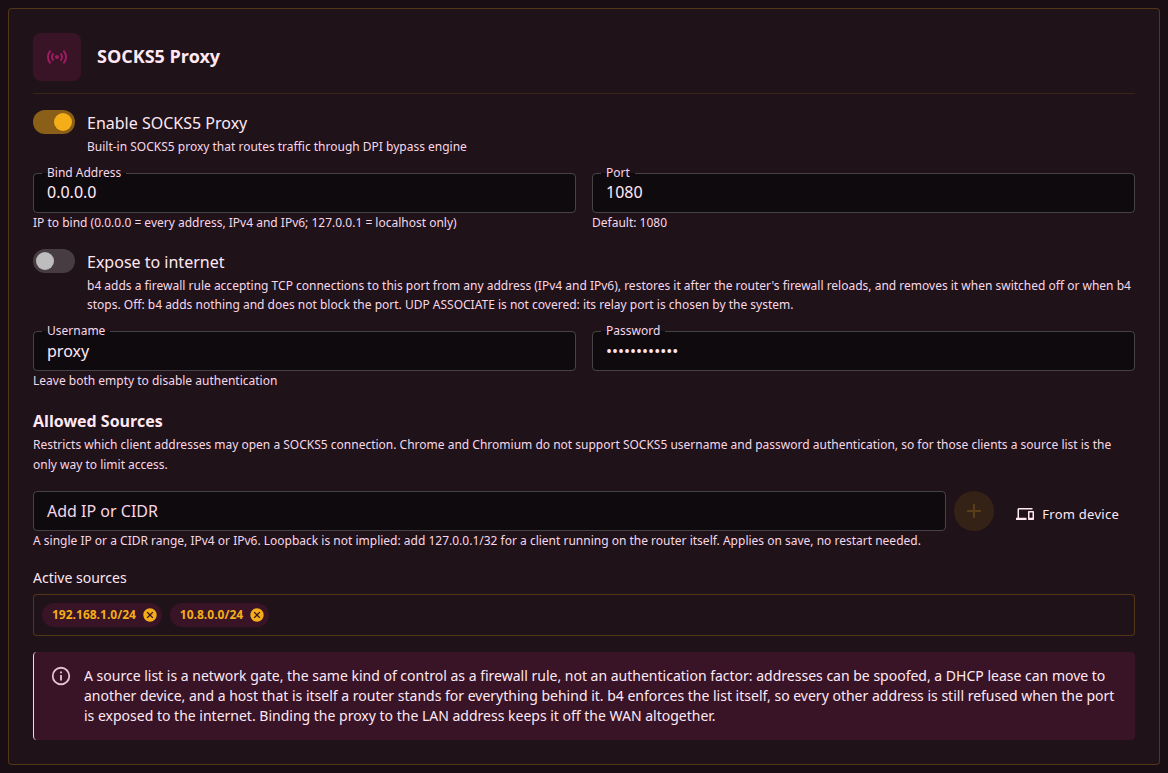
The sub-tab holds one card, SOCKS5 Proxy, for b4's built-in SOCKS5 proxy. Connections made through it leave from the router, and b4 processes them with the configured sets applied. A host name matched by a set in proxy mode is handed to that set's upstream; see Connections through the built-in SOCKS5 proxy.
| Field | Description | Default |
|---|---|---|
| Enable SOCKS5 Proxy | system.socks5.enabled. Starts the SOCKS5 server | Off |
| Bind Address | system.socks5.bind_address. IP to listen on. 0.0.0.0 means every address, IPv4 and IPv6; 127.0.0.1 means the router only | 0.0.0.0 |
| Port | system.socks5.port, 1-65535 | 1080 |
| Expose to internet | system.socks5.expose. Adds a firewall rule that accepts TCP connections to the proxy port from any address, IPv4 and IPv6, puts it back after firewall reloads and removes it when the switch is turned off or b4 stops. Can be turned on only with a username and password or at least one allowed source and, while the web server is on, with a username and password on the web interface, which a SOCKS5 client could otherwise reach through the proxy. Cannot be turned on while Skip IPTables/NFTables Setup is on. UDP ASSOCIATE is not covered, its relay port being chosen by the system. See Access from the internet | Off |
| Username | system.socks5.username. Login for SOCKS5 authentication. Both fields empty means no authentication | Empty |
| Password | system.socks5.password. Password for SOCKS5 authentication | Empty |
| Allowed Sources | system.socks5.allowed_sources. IP addresses and CIDR ranges permitted to open a connection; empty means no restriction. See Allowed sources | Empty |
Every field except Enable SOCKS5 Proxy is greyed out until the proxy is enabled. The proxy holds at most 1024 client connections at a time and closes any connection beyond that. With neither credentials nor a source list, the card warns that any client able to reach the port can relay traffic through the proxy.
Username and password work as a pair. If exactly one of the two is filled, the proxy refuses every client rather than running unauthenticated. Both empty means no authentication; both filled means authentication is required. A configuration with only one of them is rejected when it is saved.
No SOCKS5 field needs a service restart. Credentials and the source list are applied to the running proxy. Changing Enable SOCKS5 Proxy, Bind Address or Port, or clearing the username, restarts the listener on save, which closes the sessions open at that moment.
Allowed Sources
system.socks5.allowed_sources lists the client addresses that may open a connection to the proxy. An empty list, the default, means no restriction. With a non-empty list, a peer whose address falls outside every entry has its TCP connection closed at accept time, before any SOCKS5 byte is exchanged and before it occupies a connection slot.
Entries are added in the Add IP or CIDR field, or with From device, which offers the devices b4 knows that have an IPv4 address and adds the address as a /32 entry. The list appears under Active sources.
An entry is either a bare IP address, v4 or v6, read as /32 and /128, or a CIDR range. Host bits are ignored: 192.168.1.7/24 admits all of 192.168.1.0/24.
A list holding 192.168.1.0/24 and 127.0.0.1/32 accepts clients from that LAN subnet and from the router itself, and closes the connection for every other source.
A source list is the same kind of control as a firewall rule: it decides which addresses reach the proxy and nothing more. It establishes no identity. A source address can be spoofed, a DHCP lease moves from one device to another, and an entry for a host that is itself a router stands for every host behind that router. Credentials are the control that identifies a client.
Chrome and Chromium do not implement SOCKS5 username/password authentication (crbug 40323993) and cannot use an authenticated proxy at all. A source list is how the proxy serves those browsers without credentials while still refusing arbitrary clients.
Credentials and the source list are independent controls that stack. The list never changes which authentication method the proxy offers; it only decides whether a connection reaches the authentication step. With both configured, a client has to come from a listed address and present valid credentials.
Loopback is not implicitly allowed. A client running on the router itself needs 127.0.0.1/32, or ::1/128 over IPv6, listed explicitly, otherwise it is refused like any other unlisted source.
Editing the list takes effect on save, with no service restart. Live sessions whose source no longer matches are disconnected, and a source added to the list can connect immediately.
The listener accepts a connection from an unlisted source and then closes it, and the port still answers a port scan. The list adds no firewall rule either: with the default bind address 0.0.0.0 the proxy listens on the WAN address as well, and whether a connection from outside gets through is decided by the host's firewall and by Expose to internet, whose rule accepts every source address. Binding to the LAN address keeps the proxy off the WAN.
The configuration is not saved while the list holds:
- an entry that covers every address,
0.0.0.0/0or::/0; - an entry whose network address is the unspecified address, such as
0.0.0.0,::or0.0.0.0/8; - an IPv6 address with a zone, such as
fe80::1%eth0; - an entry that is neither an IP address nor a CIDR range.