Quickstart
Overview
After installation, b4 runs as a service and is available through the web interface. This page walks through the path from first launch to a working bypass.
Open the web interface
Open in the browser:
http://<IP-address>:7000
Where <IP-address> is the address of the device where b4 is installed:
- If b4 is on the same computer:
http://localhost:7000 - If on a router:
http://192.168.1.1:7000(use the router's IP)
If HTTPS is enabled in b4 settings, use https:// instead of http://. The browser may show a certificate warning - that is expected with a self-signed certificate and can be accepted.
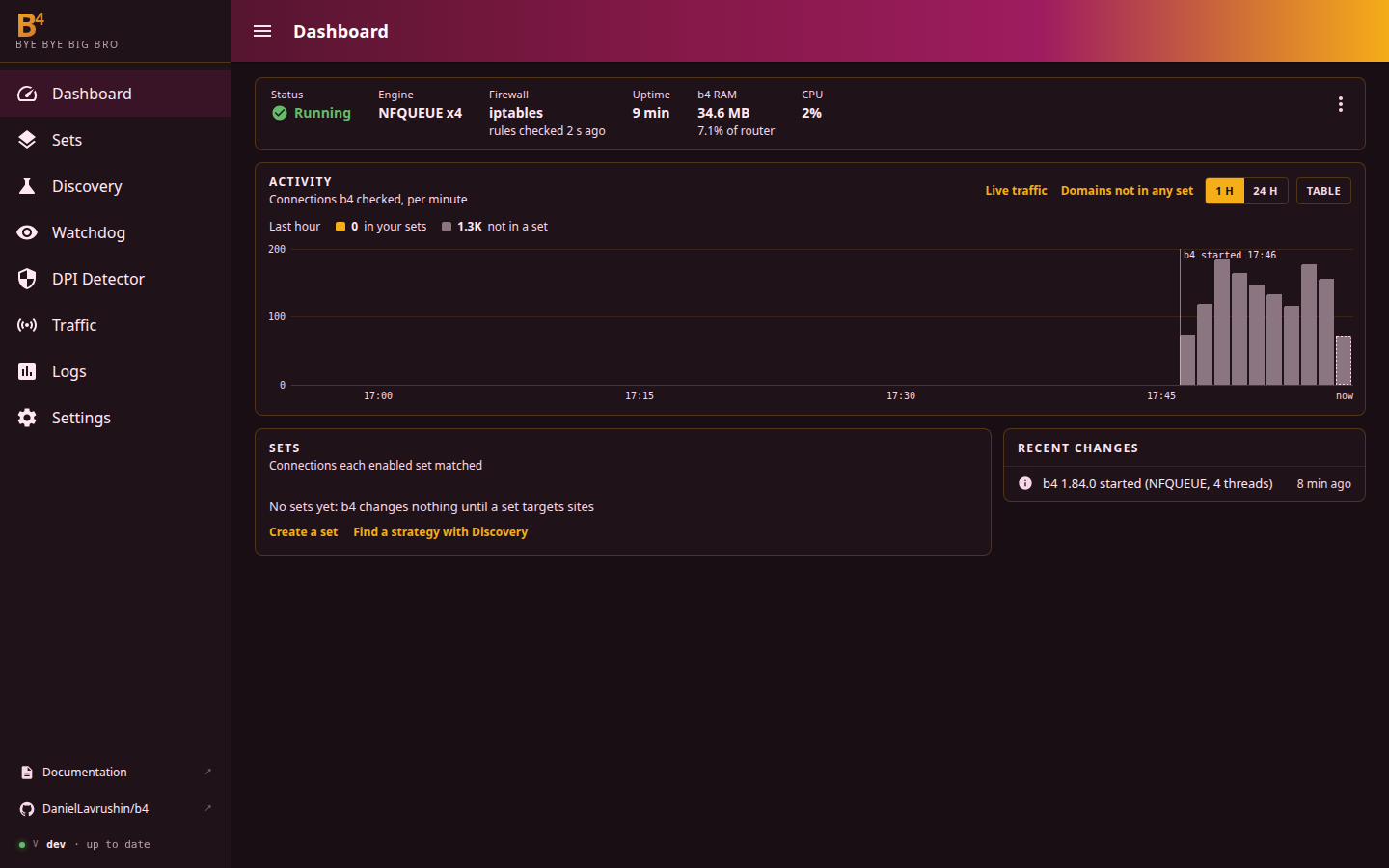
On a first launch there are no sets yet, so b4 changes nothing: the Sets panel reads No sets yet: b4 changes nothing until a set targets sites, with links to create a set and to Discovery. The Activity chart fills anyway, because b4 checks the connections to port 443 whether or not a set exists, and counts them as not in a set. Every panel is described on the Dashboard page.
Run discovery
b4 can pick a working configuration for your provider on its own. This is done in the Discovery section.
Step 1: Open Discovery
In the side menu click Discovery.
Step 2: Add sites
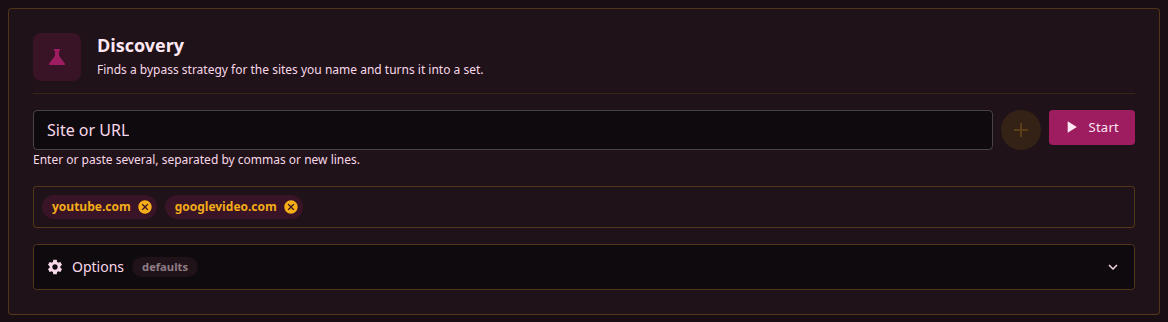
In the Site or URL field enter the address of a blocked site and press Enter. Several sites can be added at once, separated by commas.
Examples:
youtube.comgooglevideo.com
Step 3: Start the search
Click Start.
b4 tries its bypass strategies against the listed sites. The run goes through six steps, shown on the page: a DNS check, a fetch without any bypass, the strategies themselves, tuning, combining, and a confirmation of the winner.
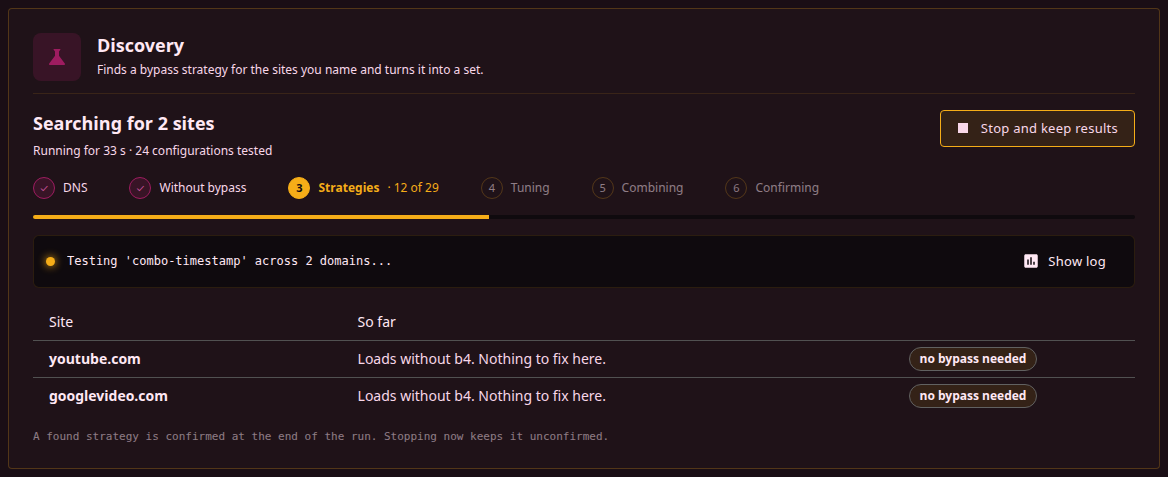
A run takes from one to ten minutes depending on the provider. Stop and keep results ends it early and keeps whatever has been found.
When DNS is known to be clean, for example with DoH or a third-party resolver already in place, Check DNS for tampering under Options can be turned off. The run gets shorter and the set gets no DNS redirect.
Step 4: Results
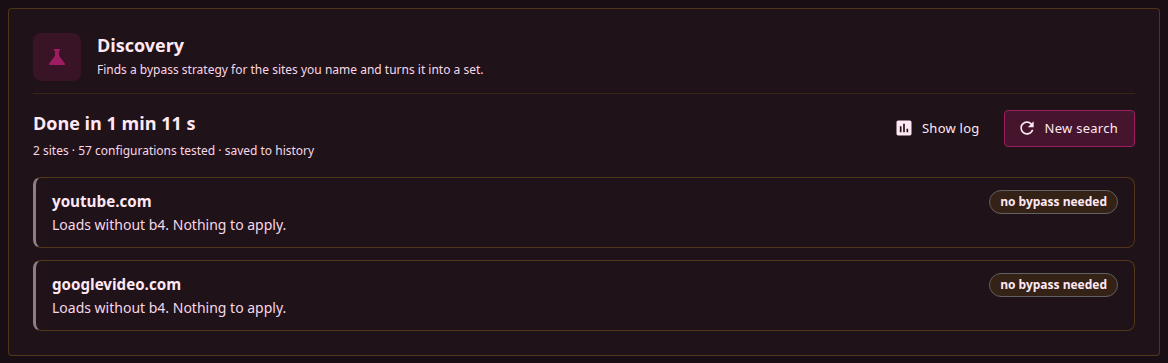
When the run finishes, every site gets a verdict:
- Strategy found - a working configuration, described in words, with Apply as a set
- No bypass needed - the site loads without b4, so there is nothing to apply
- Address blocked - connections to the site's addresses fail, so a bypass strategy cannot help and the site needs a proxy or VPN set
- Intercepted by the gateway - the first hop in front of this host answers the connections itself, so nothing b4 does here reaches past it; run b4 on that gateway, or use a proxy set when b4 is the router
- Does not resolve - the name has no address, as with a misspelled domain, so there is nothing to test
- Nothing found - no strategy made the site load
Apply the configuration
On a found result click Apply as a set.
In the dialog that opens:
- Check the rows describing what the set will do
- Keep the suggested name or enter another one
- Click Create set, or pick an existing set with the same strategy and click Add to set
A set is a bundle of bypass settings tied to a list of domains or IP addresses. More on sets in the Sets section.
Verify it works
Through the browser
Open a site that is covered by the bypass. If everything works, the site loads.
Through the Traffic section
In the side menu click Traffic. This page shows the packets b4 inspects in real time, grouped by device, protocol and domain.
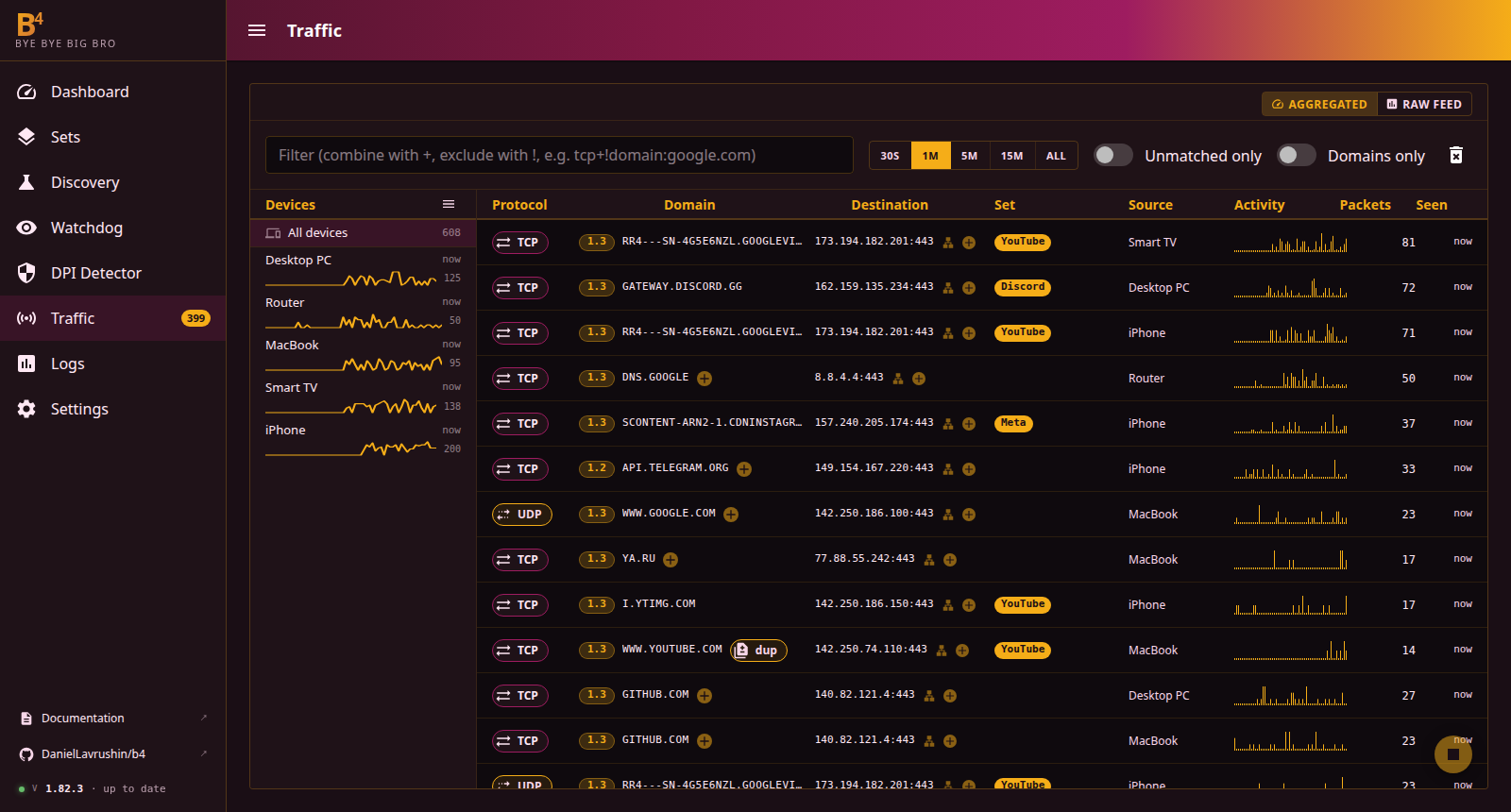
If the bypass is working, the Set column shows the name of your set next to the configured domain. More on the page in the Traffic section.
What's next
- Add more domains - through Discovery or manually in the set settings
- Configure bypass by category (GeoSite) - to avoid adding domains one by one
- See the Sets section for a detailed description of all features