Traffic
The Traffic page shows the packets b4 takes from the queue and inspects: the protocol, the domain from the TLS ClientHello or QUIC, the destination, the source device and the set that matched. The data arrives in real time over its own WebSocket stream and does not depend on the log level.
b4 does not receive every packet of a connection, only the first ones, as many as the TCP per-connection packet limit and UDP per-connection packet limit in the queue settings allow. One connection therefore produces several entries in a row, and the packet counts on this page say nothing about download speed or volume. DNS queries b4 intercepts are part of the stream too, each with the decision b4 made about it.
A TCP connection that a set in proxy mode diverts to its upstream does not pass through the queue. It appears once, usually within 250 ms of the connection, whether or not Send domain name to upstream is on. Its name is the one b4 already ties to the address, or else the domain from its TLS ClientHello or HTTP request; see Verifying that it works. UDP that the set relays appears once the upstream has set up its UDP ASSOCIATE. It is named only from the device's DNS answer, which b4 records while some proxy set sends domain names, or from a name learned earlier for the address.
The page opens in Aggregated mode. The choice between Aggregated and Raw feed in the top right corner is remembered by the browser.
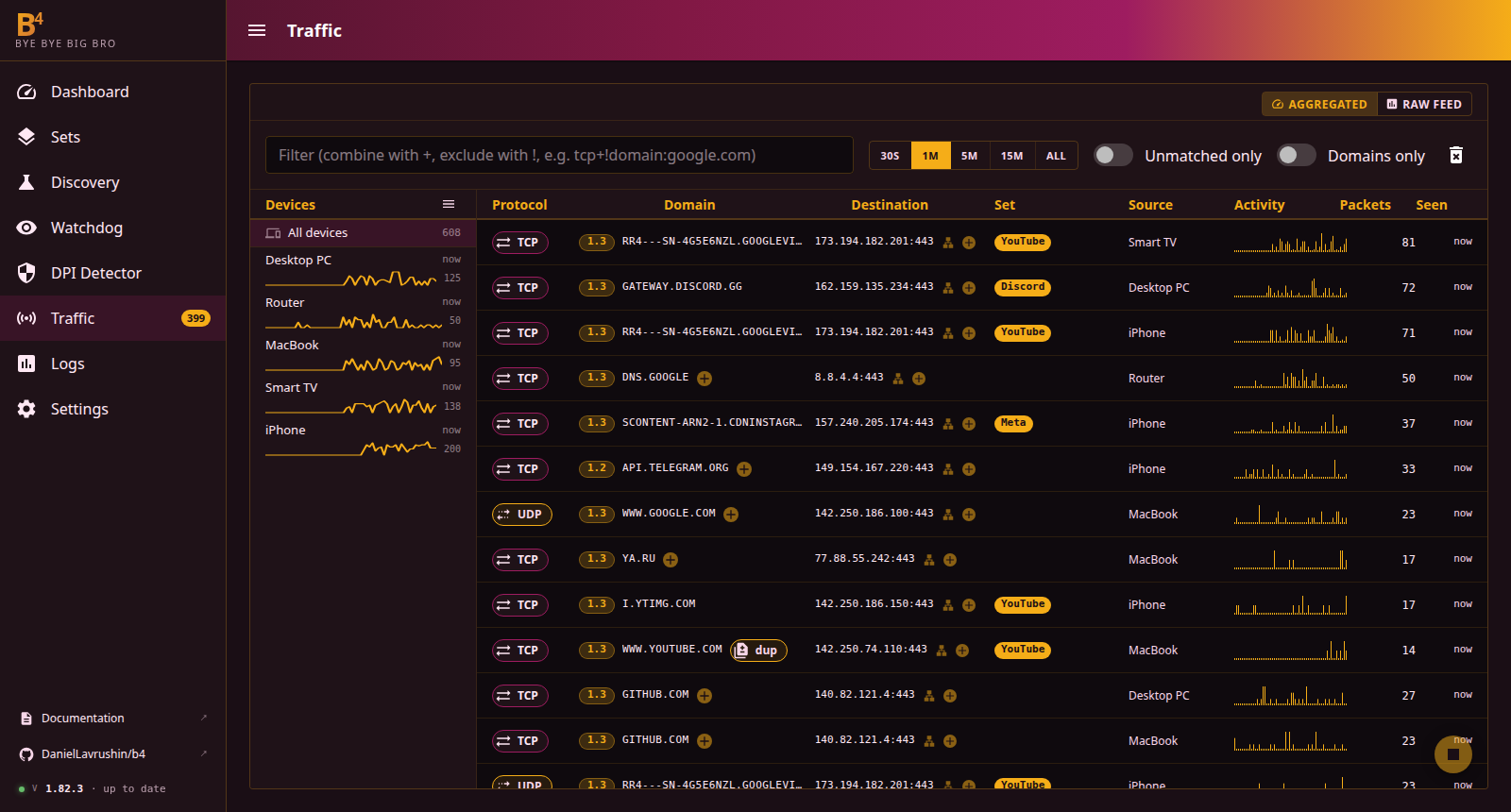
Aggregated
Packets are grouped by device, protocol and domain; a packet without a domain is grouped by its destination address instead. Groups build up while the page is open: on opening they receive the packets already held in the web interface buffer, then the new ones. Leaving the page, switching to the raw feed and clearing reset them. At most 2000 groups and 512 devices are kept, and the ones idle the longest are dropped first.
| Column | Description |
|---|---|
| Protocol | TCP or UDP |
| Domain | The domain from the handshake or "(no domain)", the TLS version (1.2, 1.3) and the labels for special cases. A domain outside every set gets a + button, see Adding domains to sets |
| Destination | The latest destination address, a +N label when there were several, and the ASN |
| Set | The set matched by domain, and the set matched by IP when it is a different one |
| Source | The device, see Devices |
| Activity | Packets per second over the last minute |
| Packets | Number of packets in the group |
| Seen | Time since the latest packet |
Clicking a column header, except Activity, sorts the list; further clicks reverse the order and then remove the sort. Unsorted, the group with the most recent packet comes first.
Clicking a row opens the Detail panel: activity, packet count, the duration from the first packet to the last, the source, every destination address of the group (up to 24) and the matched sets. For a domain outside every set it also has an Add domain to a set button.
Control bar
| Control | Effect |
|---|---|
| Filter field | See Filter |
| 30s, 1m, 5m, 15m, All | Show the groups that had packets within the period, 1m by default. The period is counted back from the latest packet received, not from the computer clock |
| Unmatched only | Keep only the groups no set matched |
| Domains only / All packets | See Domains only and all packets |
| Trash can | Clear the packets, see Pausing and clearing |
Devices
The Devices panel on the left lists the traffic sources seen within the period, each with the time since its latest packet, its activity over the last minute and its packet count. Clicking a device limits the list to its groups, All devices removes the selection. The button in the panel header collapses it; on a narrow screen it starts collapsed.
A device is identified by its MAC address. When the MAC is unknown, for example for a device behind another router, the source is grouped by its IP address. Aliases from the device filtering table are always shown. With device filtering or vendor lookup turned on there, the names of discovered devices are used as well, and the router's own addresses are labelled Router.
Raw feed
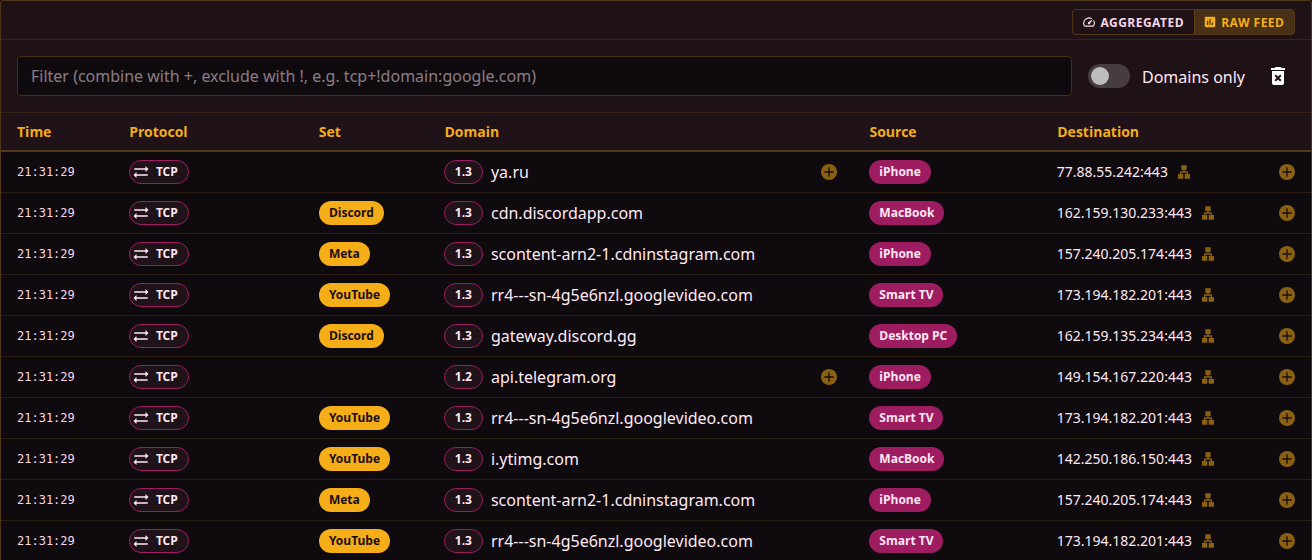
Raw feed shows packets one by one, the latest 1000. New ones are added at the bottom; while the table is scrolled to the end it stays on the latest entries.
| Column | Description |
|---|---|
| Time | Time of the packet (HH:MM:SS) |
| Protocol | TCP or UDP and the labels |
| Set | The set matched by IP, or by domain when no set matched by IP |
| Domain | The TLS version and the domain. A domain outside every set gets a + button |
| Source | The device name, or the source IP address and port |
| Destination | The destination IP address and port, the ASN, and a + button for an address outside every set |
Clicking a column header sorts the table. The Sorted by … chip next to the filter shows the current sort, and its cross removes it. While a filter is active, the number of matching packets is shown there too.
Labels
Special cases are marked with labels: next to the domain in Aggregated mode, next to the protocol in the raw feed and in the detail panel. Hovering a label explains it.
| Label | Meaning |
|---|---|
dup | The packet was duplicated, see Packet duplication |
ip | The destination was found blocked by IP. An outlined label means the address was already in the cache of blocked addresses |
block | The packet was blocked by a blocking set |
proxy | The connection came through b4's SOCKS5 proxy |
| Telegram icon | A connection of b4's MTProto proxy, with the secret's name |
| Telegram icon with Telegram bridge | A connection relayed by the Telegram over WebSocket bridge |
doh, forward, pin, sinkhole and others | The decision about a DNS query, see DNS |
The 1.2 and 1.3 labels next to a domain are the TLS version. Providers may block TLS 1.2 and TLS 1.3 by different methods, so each may need its own bypass strategy. A set can be limited to one TLS version on its Targets tab.
Domains only and all packets
The switch in the control bar applies to both modes and is remembered by the browser.
| Mode | What is shown |
|---|---|
| Domains only | Packets with a recognised domain. The default |
| All packets | Every inspected packet, including those without a domain |
All packets adds the packets in which b4 found no domain: the TCP handshake before the ClientHello, connections without SNI, traffic to addresses with no name.
Filter
The filter field is shared by both modes and is kept in the browser.
+joins conditions, and all of them must hold.!before a condition excludes what it matches.field:valuechecks a single field; several conditions on the same field hold when any one of them matches. An empty value, such asset:, matches an empty field.- A word without a field is looked up in every field.
Matching ignores case and looks for a substring. Fields available in both modes: protocol, domain, destination, tls, flags, asn, device (also alias). set exists only in Aggregated mode, source only in the raw feed.
| Filter | Shows |
|---|---|
protocol:udp | UDP packets |
domain:youtube | Packets with "youtube" in the domain |
protocol:tcp+!domain:google.com | TCP packets, except google.com domains |
protocol:udp+domain:discord | UDP packets to Discord domains |
asn:AS13335 | Destinations in AS13335 (Cloudflare) whose ASN has been looked up |
device:iPhone | Packets from the device named iPhone |
flags:dup | Packets with the dup label |
set: | Groups without a set |
Adding domains to sets
The + button next to a domain opens the add dialog.
- Domain pattern - the domain and its parent domains, from the most specific to the broadest. For
rr1---sn-ab5l6ne7.googlevideo.comthese arerr1---sn-ab5l6ne7.googlevideo.comandgooglevideo.com. A domain in a set matches the name itself and all its subdomains, so a parent domain covers every subdomain. - Set - one of the enabled sets, or Create New Set with the name entered.
- Add Domain.
Services that serve content from many subdomains (YouTube, CDNs) are covered by the parent domain, such as googlevideo.com. Otherwise every subdomain has to be added separately.
Adding addresses and networks to sets
The + button next to a destination address (and, in the raw feed, a click on the address itself) opens the add dialog. On opening, the dialog asks b4 which network announces the address. b4 asks RIPEstat, and when that request fails it answers from its ASN cache if a cached network covers the address; the browser does not contact RIPEstat itself. The dialog then shows the address, the announced prefix that covers it and the origin network, such as AS15169 Google LLC. When more than one network announces the prefix, one of them is picked in the dialog. A private address has no network. A lookup that fails can be retried, and the address itself can be added either way.
What to add
| Choice | What goes into the set |
|---|---|
| The address | The address alone, as /32, or /128 for IPv6. This is the default |
| The announced prefix | The prefix that covers the address, such as 142.250.0.0/15, when it is known and wider than the address |
| A broader mask | The address with a mask such as /24 or /16, for IPv6 /64 or /48. The host bits are cleared on saving, so 142.250.120.139/24 is stored as 142.250.120.0/24 |
| The whole network | The ASN itself, see ASN. b4 fetches its prefixes and keeps them up to date daily |
Choosing the whole network makes b4 resolve the ASN at once, and the dialog shows its prefix count and approximate number of IPv4 addresses, with the same warning for a large network as the set editor. The choice is unavailable when the selected set already has that ASN.
The set is one of the existing sets or a new set with the name entered; a new set is placed at the top of the list. The confirm button names what is added, such as Add 142.250.120.139 or Add AS15169. Only that one address or that one ASN number is sent to b4, which validates it, adds it to the set and refreshes the firewall rules the set affects, including the MSS clamp and duplication addresses. An ASN without known prefixes is added anyway and fetched in the background. A refused request shows the reason b4 gave.
With an API token set on the Settings → Integrations tab, the dialog also offers ipinfo.io details for the address: hostname, organization and location, with an option to add the hostname to a set's domains. A free token is available from ipinfo.io.
The DPI Detector opens the same dialog from its Hosting and CDN results, with the network of the affected provider already chosen.
ASN
The network icon next to a destination address looks up its network without opening the dialog: b4 finds the ASN that announces the address and fetches that network's prefixes into its ASN cache. Addresses of that network then carry a label such as AS15169 Google LLC, and the asn: filter finds them.
The labels come from b4's ASN cache, asn_cache.json next to the configuration, which also holds the prefixes of the ASNs that sets target. Every browser sees the same labels, and an ASN a set targets labels its addresses as well.
The cross on a label deletes that ASN from the cache and removes its labels. An ASN that a set still targets is not deleted: b4 names the sets that use it and the label stays.
Pausing and clearing
The round button in the bottom right corner, or the P key, stops and resumes the stream. While paused, new packets are not collected and the page frame is highlighted.
The trash can in the control bar (Clear Packets) removes the collected packets, groups and devices.
| Key | Action |
|---|---|
| P or Pause | Pause and resume the stream |
| Ctrl+X or Delete | Clear the packets |
Menu counter
The Traffic item in the side menu shows the number of packets that matched a set since the counter was last reset (999+ above 999). Clicking the Traffic item and clearing the packets reset it. It does not grow while the stream is paused.